cookieOptions = {...}; My Galaxy SIII How To: guide
Showing posts with label guide. Show all posts

Sunday, July 22, 2012

How to Enable Auto Reject Call to Block Unwanted Callers number on your Samsung Galaxy S3

If you need to block unwanted calls on your Samsung Galaxy S3 you can simply set it by enabling the 'auto reject mode' via your phone's "call settings". This option lets you block an specific caller's number that will be blacklisted as incoming call to your phone number. Yeah, too nice isn't it! block someone you wouldn't mind to talk like your boyfriend if he breaks you up. This is also good for people who loves to play hide and seek.  But don't ever block your wife, husband, mom, dad, family members or closest friends number or they might be worry about you when you're away.

To block a call from someone's number you can simply set it by doing this steps.

From the Home screen, Tap on "Menu"
Tap on "Settings"
Tap "Call Settings"
Then select "Call Rejection"
Enable the “Auto Reject Mode”
Select “Auto Reject List”.
Here you will have the following options:
Enter a caller's number: You can create a reject a call by entering a specific numbers
Choose from your contacts: Go into your contacts and choose a particular contact's numbers that you wish to reject or block.
Match criteria: you could also select Match criteria to further customize the automation, an option to search the number from log and can add to the block list.

Then Tap on "Save" your call rejection settings.

If you need to add more number to the rejection list, just repeat the above steps.
It displays as 'Unknown", you may then click the “Create” + button and type the number to add the numbers.You can also use the “Match Criteria” option to search the number from log and can add to the block list.

Sunday, July 15, 2012

How to Connect Samsung Galaxy S3 to smartTV using MHL to HDMI adapter

If you already bought a Samsung Galaxy S3 MHL to HDMI Adapter and want to connect your phone to a smartTV or any LED TV and LCD TV sets with HDMI input options you can do it as simple steps ahead.

The Samsung Galaxy S3 MHL to HDMI Adapter cable connects to the MicroUSB connection on the bottom of the Samsung Galaxy S3 and provides a HDMI port into which you can connect an HDMI cable which in turn connects to a HDMI TV screen. So, you can watch a film stored on the Galaxy S3,browse your photos or play it through your flat widescreen TV and keep the phone charged at the same time.

The Samsung Galaxy S3 comes with large internal memory or can even upgraded up to 64GB external SD card. So you can load more photos, videos, music on your Galaxy S3. This options lets stream your photos, watch movies (iTunes, NetFlix), videos, MTV, Podcast, on your HDTV via your Samsung Galaxy S3.

The Samsung Galaxy S3 HDMI adapter is portable and easy to use. This MHL to HDMI Adapter is one of the must have Samsung Galaxy S3 Accessories, So that you can turn your Galaxy S3 in a full-featured home entertainment and presentation system when coupled with an HDTV.

Here's the MHL to HDMI Adapter connection guide from Samsung Galaxy S3 and TV:
1. Connect your MHL Adapter on your Samsung Galaxy S3 micro USB port.
2. Connect the HDTV using the HDMI cable to the MHL Adapter
3. Connect the MHL Adapter external power supply (5V, 500mA), this is needed so that the Adapter will work and convert the MHL to HDMI signal from your Samsung Galaxy S3 to HDTV.


Once you connect the MHL Adapter you simply need to set your TV to HDMI input options and then also restart your Samsung Galaxy S3 after connecting your MHL adapter to TV.

Saturday, July 7, 2012

How to format a 32GB/64GB Micro SDHC/SDXC card on Samsung Galaxy S3

If you have just bought a new MicroSd card on your Samsung Galaxy S3 you need to format it first before you can continue to use the card to store files such as apps, music, videos and anything on it.

When you ordered a Samsung Galaxy S3 its already have a preloaded 32gb class 10 additional microSd card, an external memory on the phone. Some users prepared additional space so that they can store more files since Samsung Galaxy S3 is upgradeable up to 64gb extenal microSD memory card.

So, it needs to be formatted first when you put it into your Galaxy S3 before you can store anything to it, just make sure that you have purchased a compatible card that exactly works on Samsung Galaxy S3.
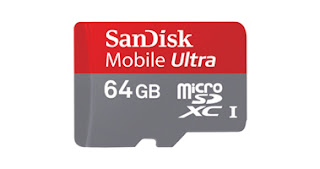
When my newly purchased 64gb micro SDXC card - mine is Sandisk Mobile Ultra, I first formatted it to exFAT file system. A  64GB micro SDXC cards works basically on every Android device that can read up to that capacity but they generally only work when formatted to Fat32 rather than the SDXC standards native exFAT formatting system (several devices on ICS work with them formatted NTFS now also, but as a general rule Fat32 is the only option). The problem here is that when you use of these cards Fat32 formatted you impose a 4GB file size limit on them, which can be hassle for transferring HD video to your device, and even worse you curtail the stellar read and write speeds available in the SDXC standard. I for one can't wait to format my 64GB card to exFAT for unrestricted use in my S III.

You can grab the SDXC formatter with exFAT support at https://www.sdcard.org/downloads/formatter_3/

This guide shows how to format the microSD card once you firstly mount the external sdcard on your Samsung Galaxy S3 phone's memory card tray.

1. Press the 'Home Menu'.

2. Choose 'Settings'.

3. Scroll down to the bottom> Tap 'Storage'.

4. scroll down to the bottom> Tap 'SD card'

5. Tap 'Mount SD card'

6. Tap 'Format SD card'

7. You'll be then prompted with a message
Data cannot be recoverred after SD card is cleared. Continue?

8. Just Tap 'Format SD Card' button

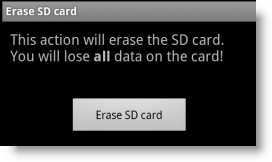
9. Finally Tap on 'Erase SD Card' button to start the erase process.


10. That's it!

You will then see a total available space of your newly formatted SD card. You can now add or store more files as you want on your Samsung Galaxy S3 externalSD card.

Update:  Prior to the new firmware releases by Samsung, this process will no longer works.. Please read martin phillips posts below instead.
It would appear that the recent firmware upgrade withdrew support for the exFAT file system. Reading around, lots of people have reported problems with exFAT on the S3 (see the http://forum.xda-developers.com wesite). It was from this site that I got the solution....

FAT32 is the way to go (yeah it's got a 4Gb individual file limit, but I'd rather have 64Gb of storage than a 'dead' card). As I reported above, the Windows 7 command line tool will not format a 64Gb card to FAT32. The solution from the xda site above is to use this tool: http://www.ridgecrop.demon.co.uk/index.htm?guiformat.html
(click on the screenshot to download, not the 'Download' link)

All I have to do now is put all my data back on the card!!!

Wednesday, June 27, 2012

How to Change the Lockscreen Shortcut Icons on your Samsung Galaxy S3

These are instructions on how to change and customize your Samsung Galaxy S3 Lockscreen to display your calendar, mail, calls, sms, weather, twitter, facebook, todo, apps and more. On the Samsung Galaxy S III you can change the content on your lock screen of your own choice.

Change your Samsung  Galaxy S3 Lockscreen Shortcuts:
This option will allow you to make shortcuts to the features or apps that you use the most. Turn them on and off by swiping the button next to where is reads Shortcuts. You can change the shortcuts on the lockscreen by pressing down on your screen where it says Shortcuts, when you do this you will be taken to a different screen where you can remove and add new shortcuts simply by pressing the icon you want to get rid of and dragging it into the thrash can that appears at the bottom of the screen.
Customizing the Lock Screen Settings - including shortcuts icons
1) Tap "Menu"
2) Tap "Settings"
3) Tap "Security"
4) Tap "Lock Screen Options"
5) Tap "Shortcuts", it will take to "Set shortcuts"options menu.
Then you can set or add any icons as you like. Just tap the “+” symbol to get up the list of available new shortcuts to choose from. 

That's it! you change the lockscreen shortcuts icons on your Samsung Galaxy S3 as often as you like.


Tuesday, June 26, 2012

How to Connect Samsung Galaxy S3 to TV via WiFi

Here's how you  can connect your Samsung Galaxy S3 to TV.
If you want to watch a streaming photos and videos on your large screen TV from your Samsung Galaxy S3 is very awesome. There are two methods on how you can enable it by using two main accessories introduced by Samsung.

Connect Samsung Galaxy S3 to TV using AllShare Cast Dongle via Wi-Fi

The Samsung AllShare Cast Dongle can be connected to your HDTV to enable the streaming of content from your Samsung Galaxy S3. The dongle plugs into an HDMI port on your TV set and photos and videos can then be streamed to the TV via Wi-Fi.

If you're looking to pair up a brand new Galaxy S III with a bigger screen, but you're not yet part of the Smart TV generation, then this little accessory could get you out of a fix. It's palm-sized with a single blue LED light indicating a connection, but honestly you don't ever need to look at it: it doesn't need line-of-sight to your handset because it uses a wireless protocol called WiFi Display, which means you can happily leave it dangling out of the way behind your TV. The unit has two cables: one for power and the other for the HDMI connection to your TV, which can transmit up to 1080p video and audio. As you'll see in the hands-on video after the break, it works for direct mirroring, so you can watch movies, play games or reel off holiday slideshows. But it also has a more enterprise-focused feature, in the form of a slideshow function in cahoots with the Polaris Office app, which means you can use your GS III as a controller for a presentation. It's a simple idea, but it all seemed to work smoothly and we can imagine it coming in pretty handy.


Connect Samsung Galaxy S3 to TV using HDMI adapter

This official MHL adaptor for the Samsung Galaxy S3 allows you to create an HDMI output via your handset's microUSB connection.


This cable connects to the MicroUSB connection on the bottom of the Samsung Galaxy S3 and provides a HDMI port into which you can connect an HDMI cable which in turn connects to a HDMI screen.

You can too connect a microUSB mains power cable to the device at the same time as the MHL HDTV adapter has a microUSB port on it to accept power. So, you can watch a film stored on the Galaxy S3, play it through your 42" HDTV and keep the phone charged at the same time.

If you already have a device such as a Samsung Galaxy S II or Nexus that has MHL/video out through the microUSB port then be aware, if you own the accessory that allows you to connect it to a HD display, IT WILL NOT WORK with the Galaxy S III.

The Galaxy S3 has a different pin connection so you need a different adapter, which you can buy.
It works in exactly the same way but has the correct pin connections so your S3 display will be shown on a HD monitor or TV. If you too have an MHL enabled monitor like the one we demonstrated here, you will too need this accessory as the current microUSB MHL cables do not support the S3, it is hardware related rather than software. Here's a guide for the MHL to HDMI connection to your Smart TV sets.

sources: clove.co.uk | androidauthority | engadget

How to Connect Samsung Galaxy S3 to Computer (Windows & Mac OS)

It is the third generation successor to Samsung's previous flagship phones, the Samsung Galaxy S II. It has an HD (720 x 1280 pixels, 4.8 inches) Super AMOLED capacitive touchscreen display with Corning Gorilla Glass 2, an improved camera system, and Google's new version of its Android operating system, Android OS, v4.0.4 , codenamed Ice Cream Sandwich. If you have a Samsung Galaxy S3 in hand, you probably have good experience on it. This guide will show you some tips on how to connect the Galaxy S III to PC for transferring music, picture, video files to Galaxy S III.

The Samsung Galaxy S III uses two Media device mode the (MTP) and Camera (PTP) mode only.

Guide: How to Connect Samsung Galaxy S3 to to PC with Windows OS via USB.

1. Use a USB cable to connect your Samsung Galaxy S3 to a Windows computer.
2. This connection uses the MTP protocol, which is supported by most recent versions of Windows.
3. When you connect your Samsung Galaxy S3 to the USB port on your Windows computer, its USB storage is mounted as a drive and appears on your computer screen.
4. Now you can copy music, picture, video files to Samsung Galaxy S3 from windows PC as you using any other external device.
5. When you’re finished, simply disconnect the Samsung Galaxy S3 by unplugging the USB cable.

Note: If you are using USB tethering, you must turn that off before you can use USB to transfer files between your Samsung Galaxy S3 phone and Windows computer.

Guide: How to Connect Samsung Galaxy S3 to to PC with MAC OS via USB.
This connection uses the MTP protocol, which is not supported by Mac OS X natively. Therefore, you first need to install the free Android File Transfer application on your Macintosh. It’s available from www.android.com/filetransfer, along with instructions on how to install it. After you install Android File Transfer, follow these steps:
1. If you are using Android File Transfer for the first time, double-click it to open it.
2. After you start Android File Transfer once, it opens automatically whenever you connect your device to your computer.
3. Connect your device to your computer with a USB cable.
4. Android File Transfer starts, if it’s not already running, and opens a window that displays the contents of your device, along with storage space details at the bottom of the window.
5. If it were a Finder window: opening and closing folders, creating new folders, and dragging music, picture, video files to Samsung Galaxy S3 from Mac PC. Disconnect the USB cable when you're finished.

 Update: Seems this ain't work anymore with the latest firmware updates on Galaxy S3.  Both companies doesn't like each other, and users get affected by their bloody war. I tried transferring files using bluetooth but it keeps sending failed, then again I tried sending files via e-mail, it works but heck that was not a fix solution. Some fixes i found out is to use a free 3rd party application from Google play store. I used a free file manager application, hope you could find out any best solution for this issue too.

Guide: How to connect Samsung Galaxy S3 to PC wirelessly via WiFi (Windows and Mac OSX)
Samsung has also added a convenience to Galaxy S3 users, such features is that you can also connect your Galaxy S3 device to PC wirelessly, and sync your content, via Wi-Fi. Buit some functionality  is limited when device connected to Kies via Wi-Fi compared to connection via USB. All you need to have is Samsung Kies installed on your PC or laptop. This will work both on computers with Windows and Mac OS, just download and install Samsung  Kies according to your computer's operating system.